Help
Select, move, and transform content in Sketch Board
Use Select & Transform for items, backgrounds, and single strokes; use Strokes Selector for groups of handwriting strokes.
Quick answer
Use Select & Transform when you want to move or resize a single item, layer background, additional item, or current layer content. Use Strokes Selector when you want to circle a group of handwriting strokes and operate on them together.
Select & Transform
This mode is for direct item adjustment.
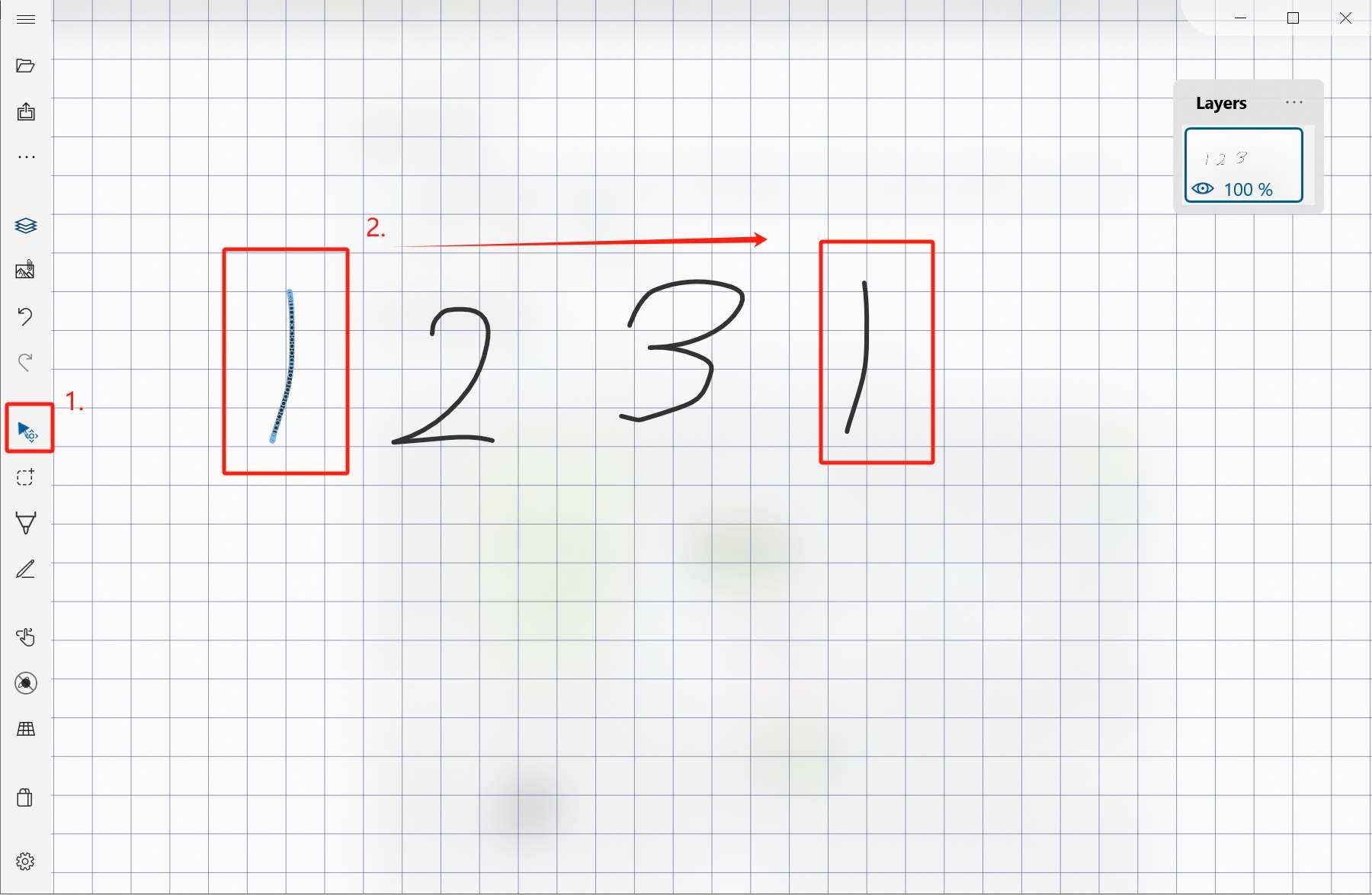
Move a single stroke
On the selected layer, press the target stroke with the mouse or stylus, then move it.
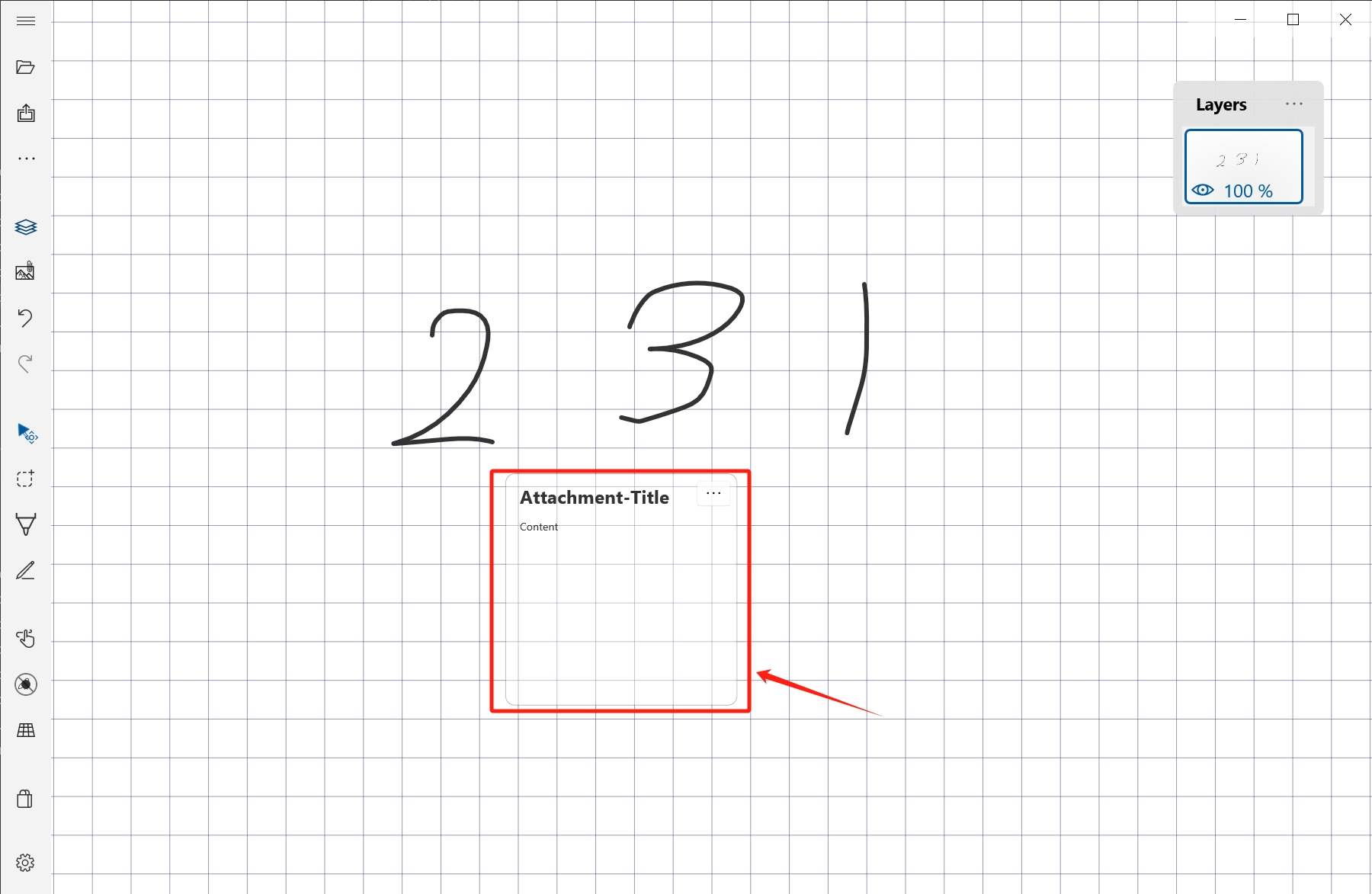
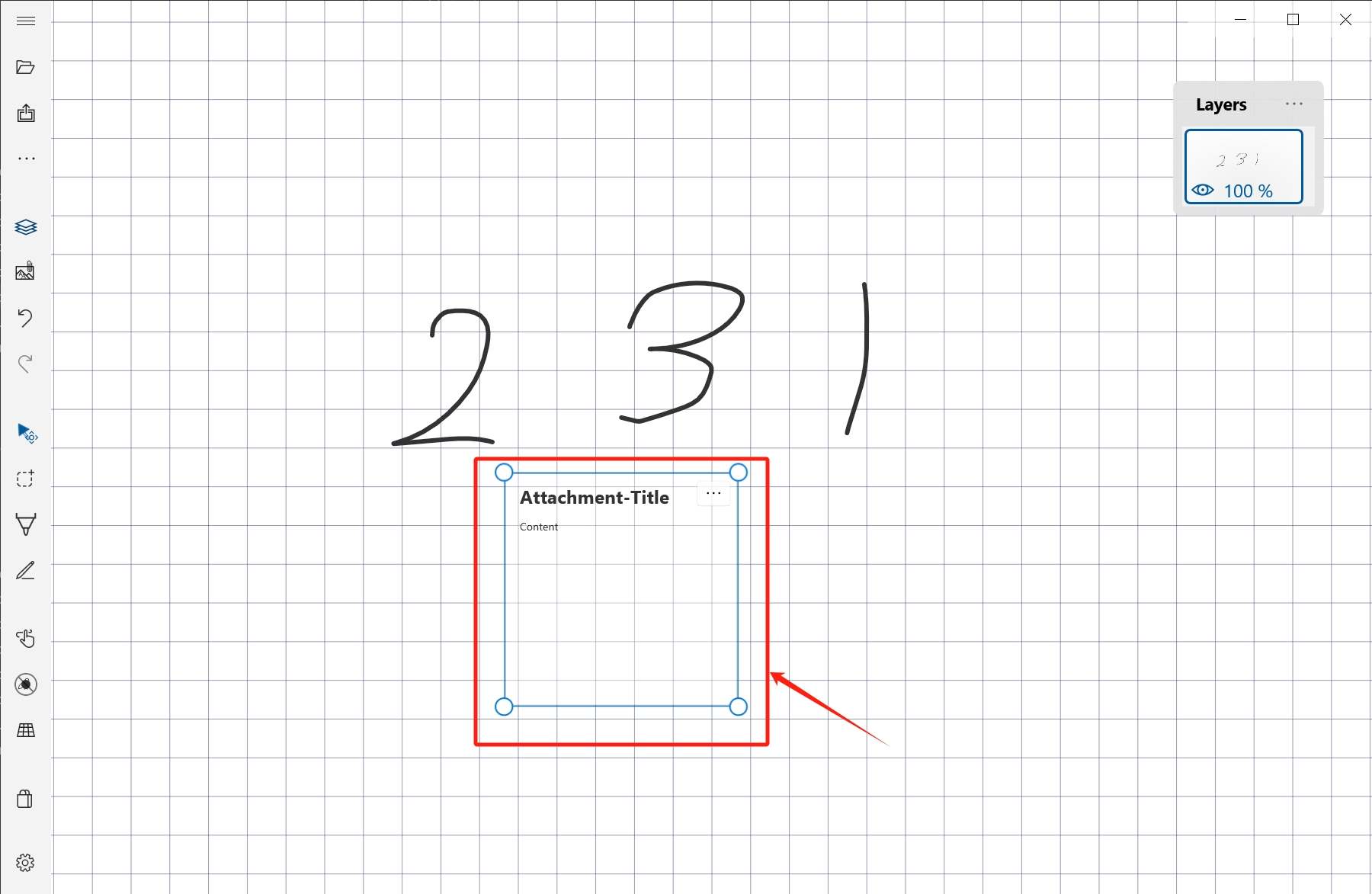
Adjust additional items
Click an additional item to select it, then drag the four corner dots to adjust its size.
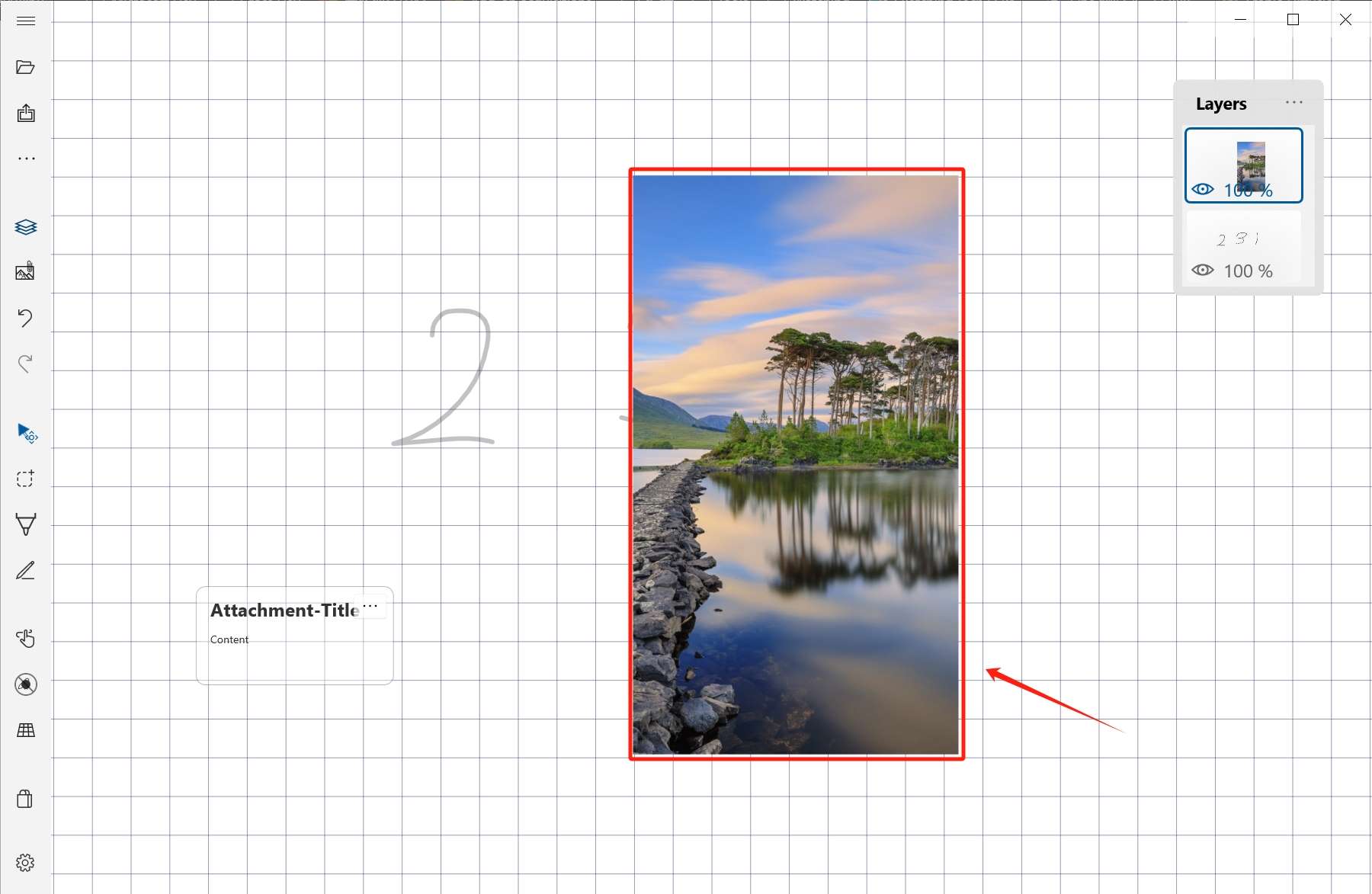
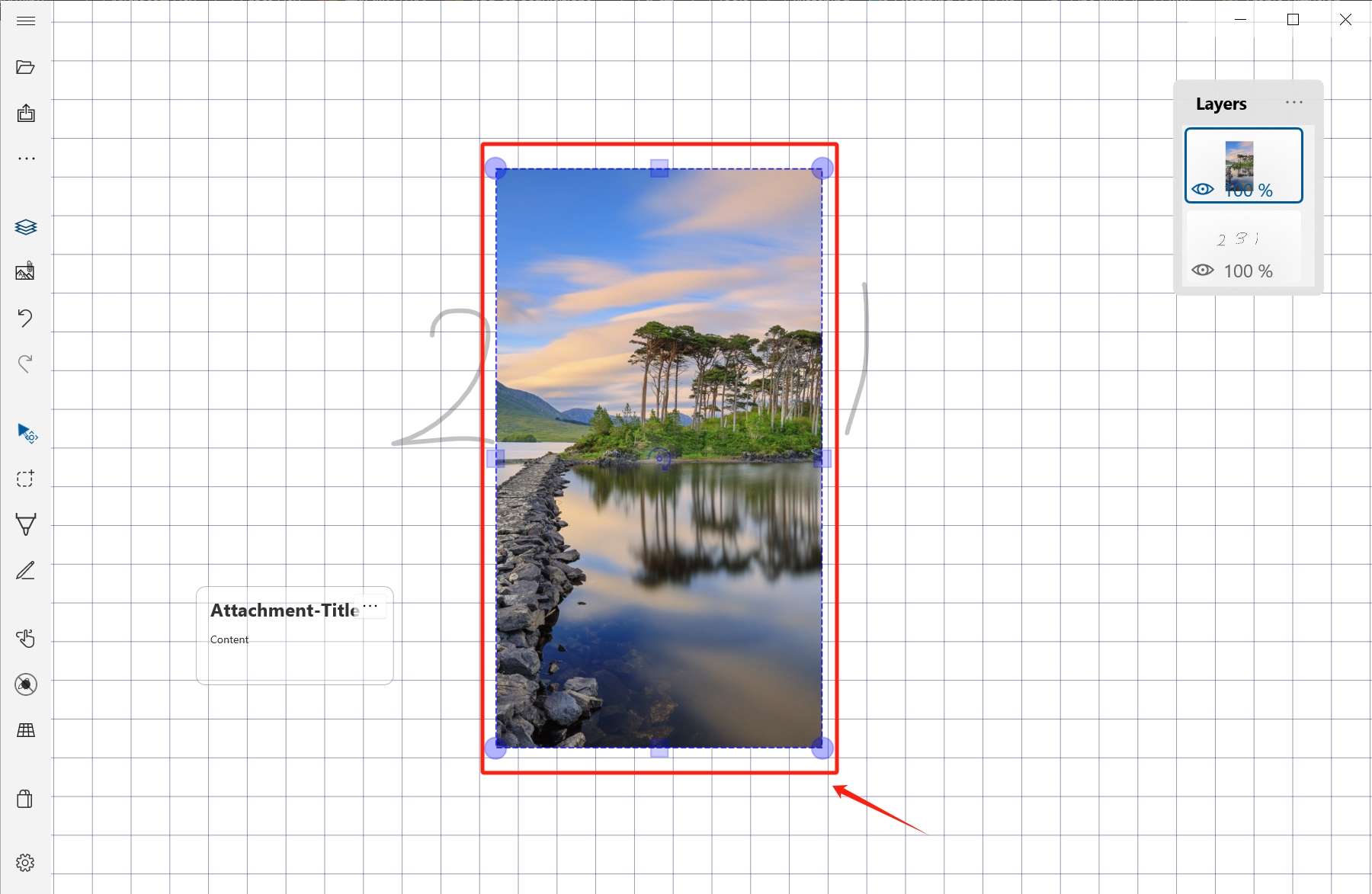
Adjust a layer background image
Click the background image of the selected layer, then drag the border dots to resize it.
More settings
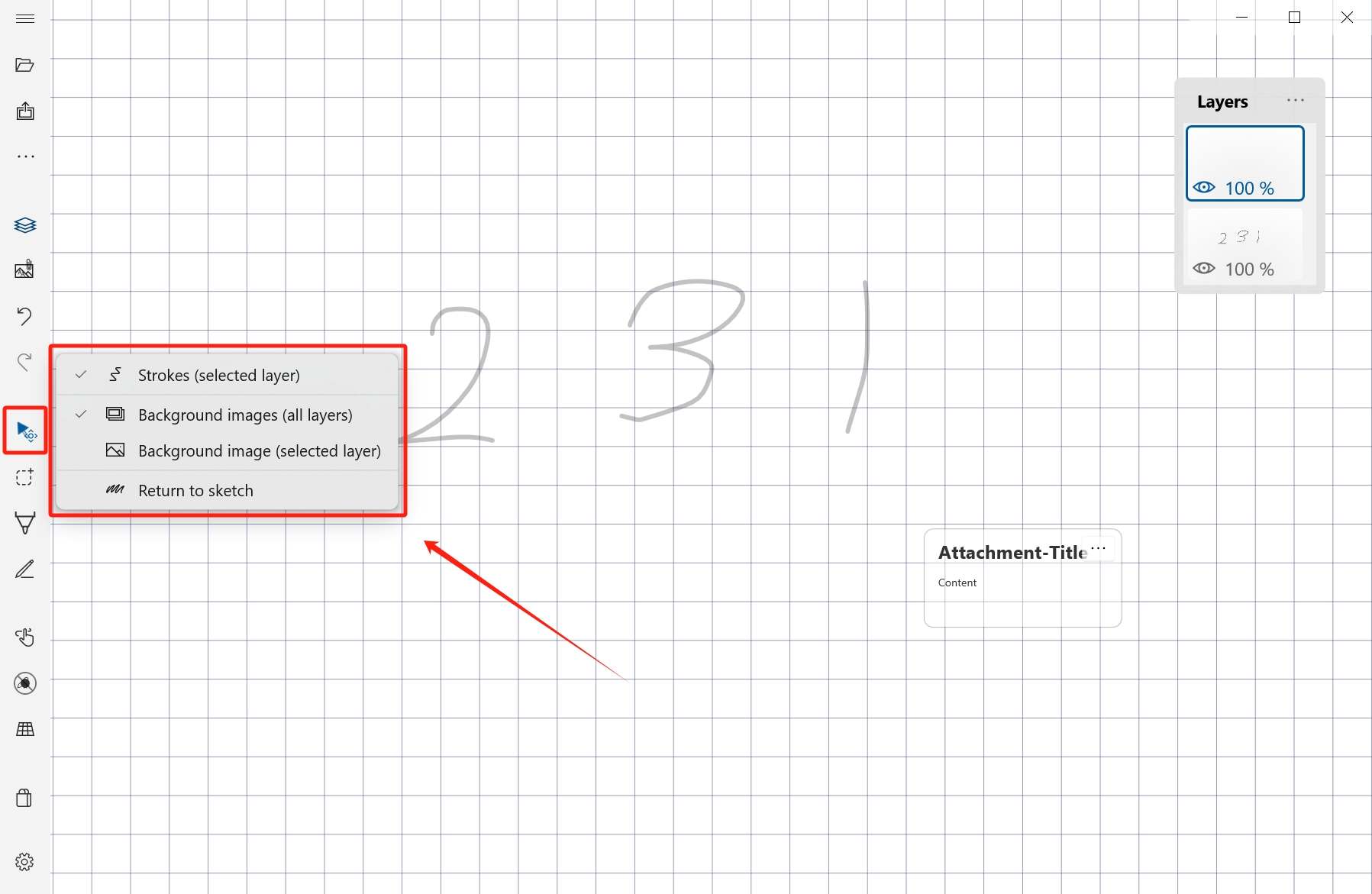
After activating Select & Transform, click the tool again to open the options menu.
Strokes Selector
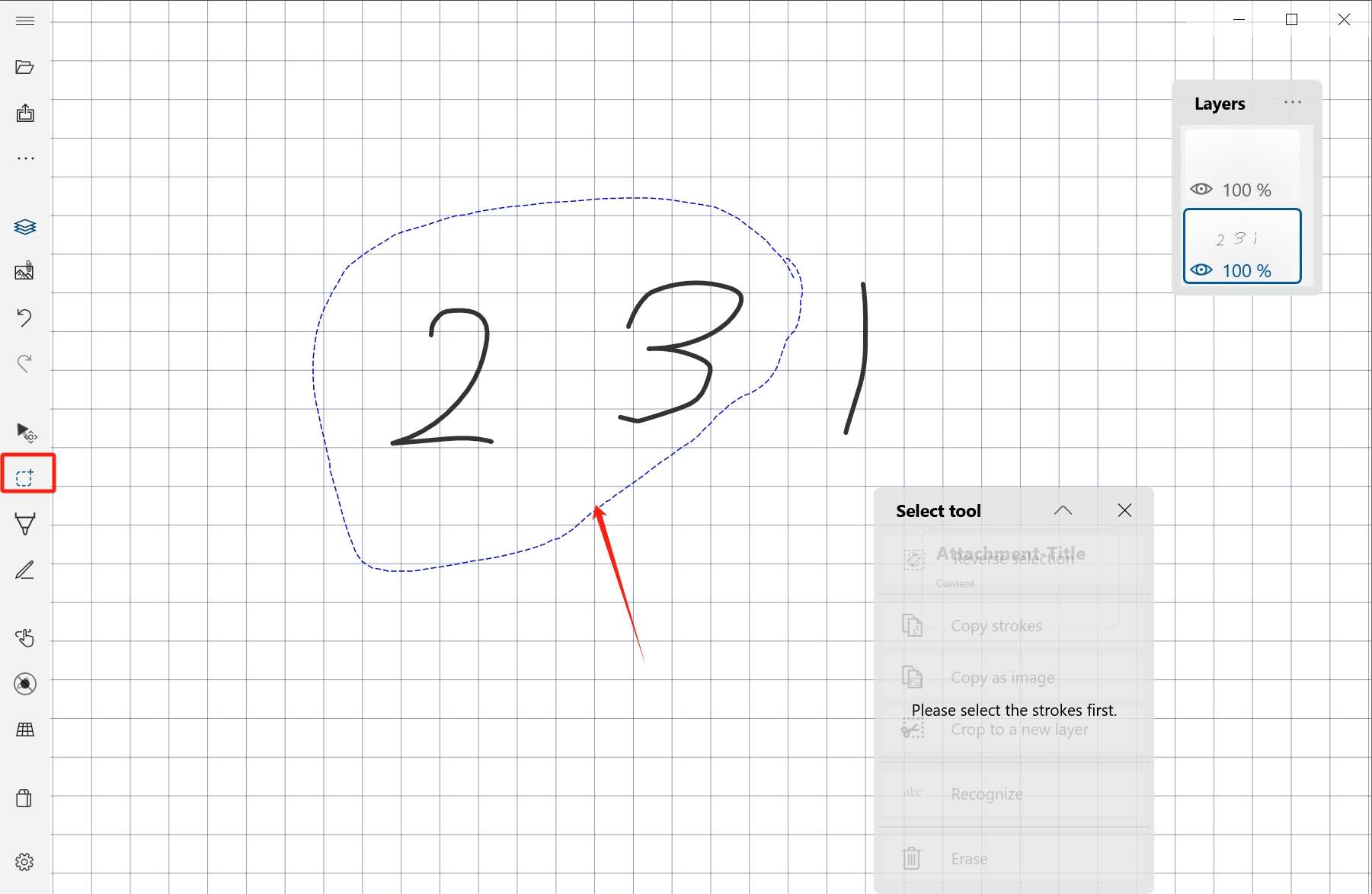
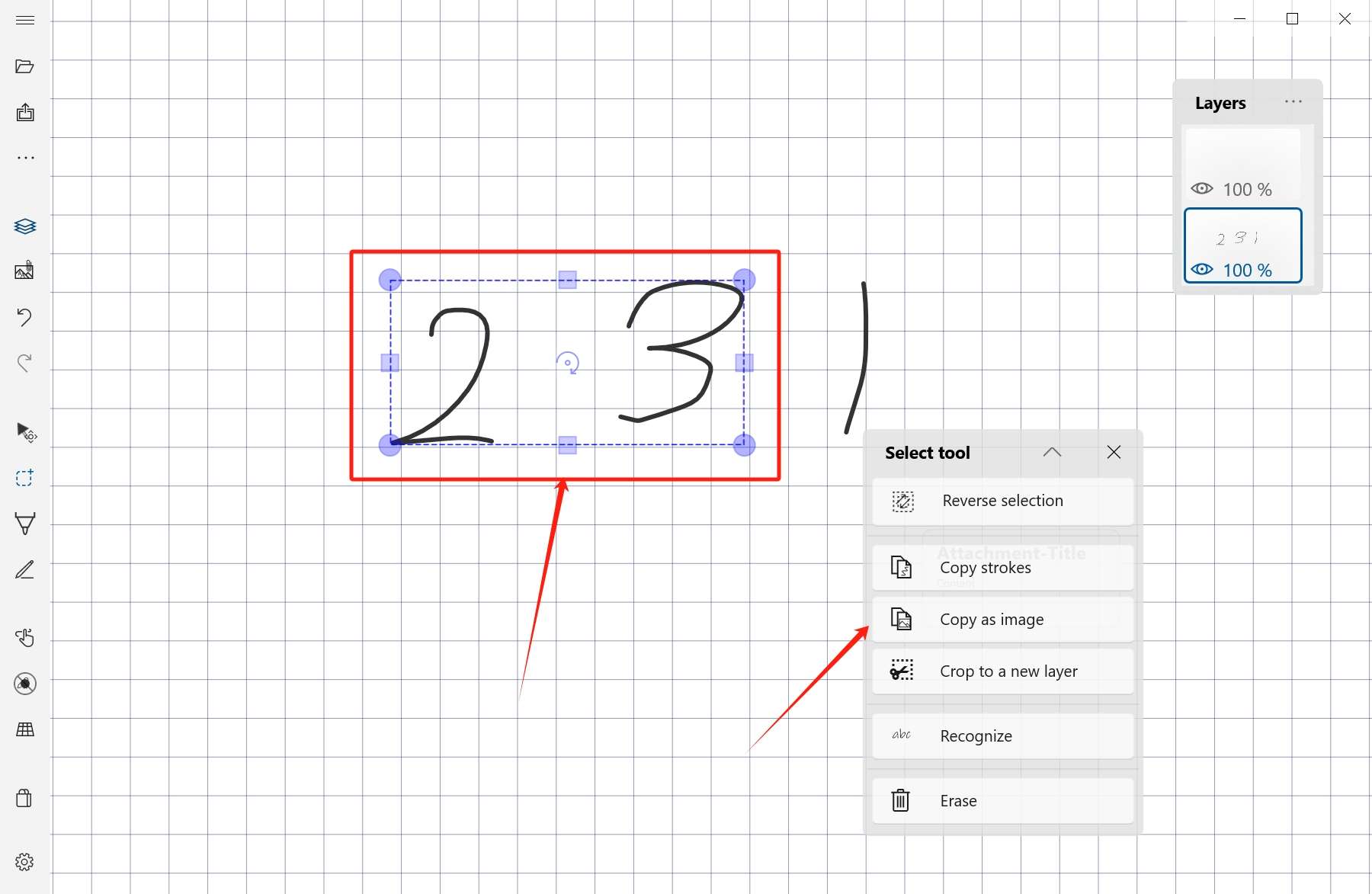
Switch to the selection tool, then use a mouse, stylus, or touch input to circle the target strokes.
Common actions
- Select strokes.
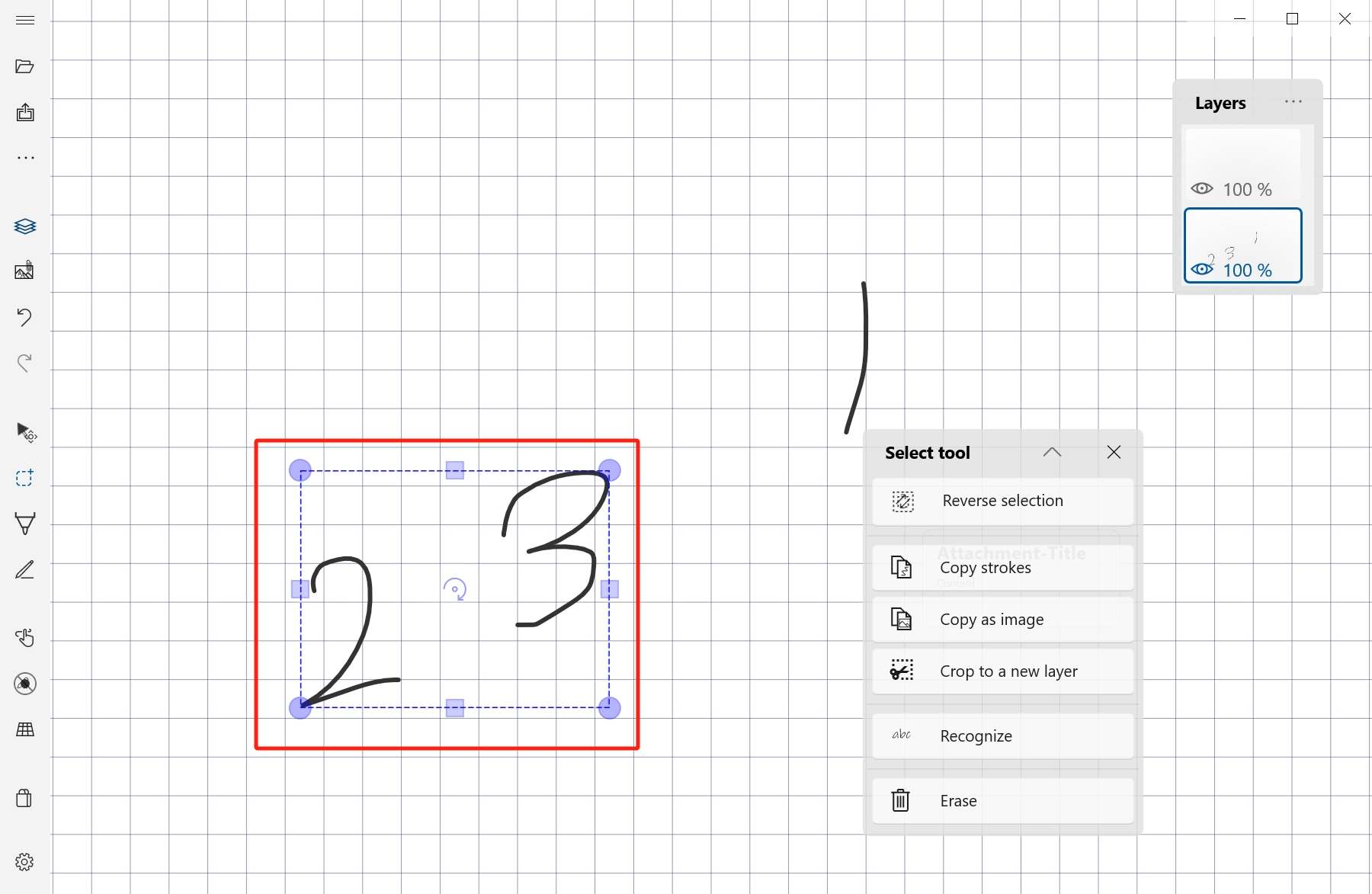
- Move selected strokes.
- Scale or transform selected content.
- Copy strokes or copy them as an image.
- Switch between direct and reverse selection when the selection area is easier to define the other way around.
When to use it
Selection and transform are best when you want to reorganize notes, clean up a drawing, resize a group of strokes, or prepare content before exporting.